IBO Player Pro Installation Guide for FireStick — Set Up 4K IPTV Easily
Enable “Apps from Unknown Sources” in your FireStick settings. This allows you to sideload the IBO Player Pro app for IPTV.
Step 1: From the FireStick home screen, select Search to continue the installation.
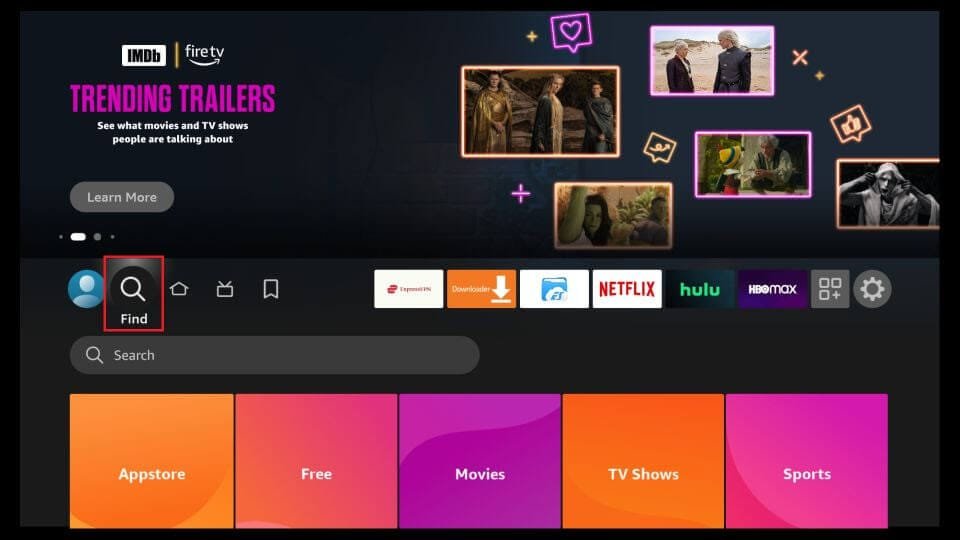
Step 2: Click on Search to proceed.
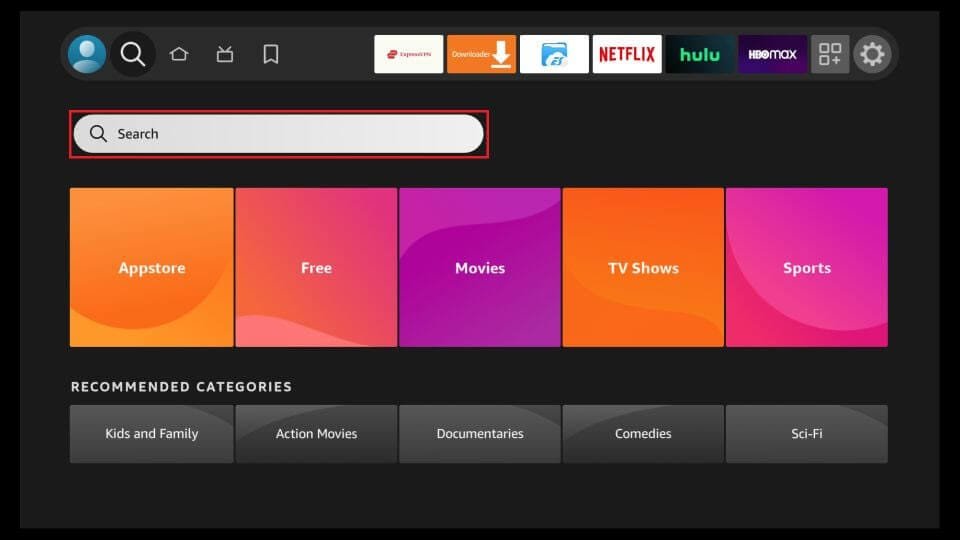
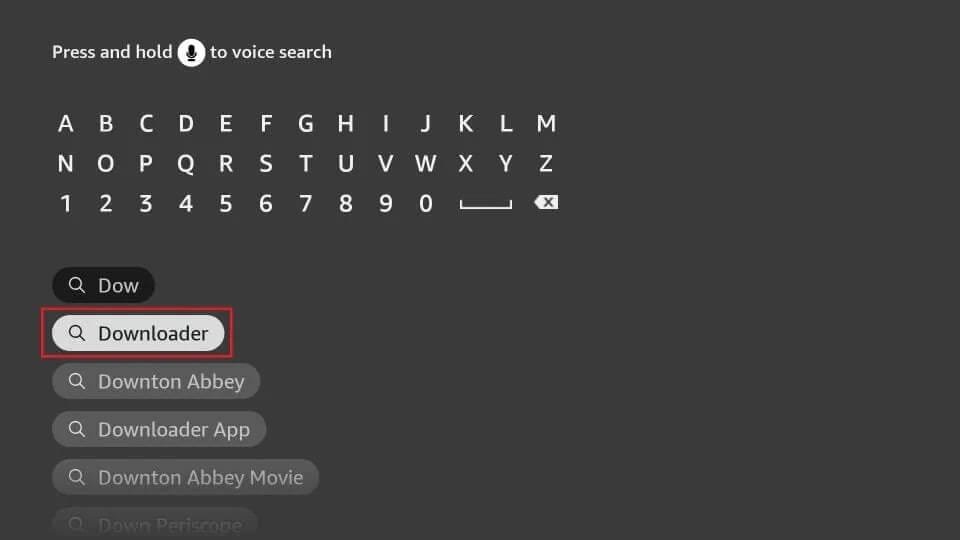
Step 3: In the search bar, look for the Downloader app. This is the app we’ll use to install IBO Player on your FireStick.
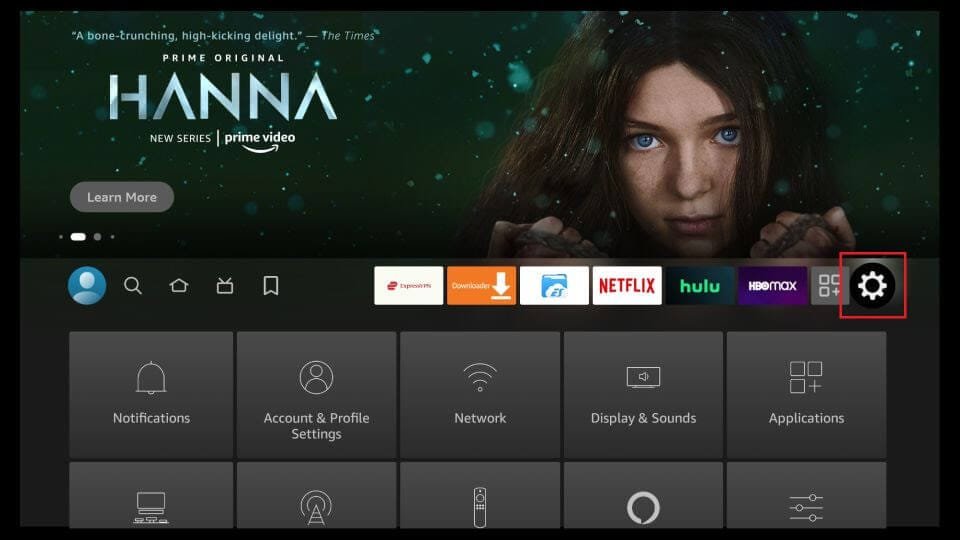
Step 4: After installing the Downloader app, return to the FireStick home screen and select Settings.
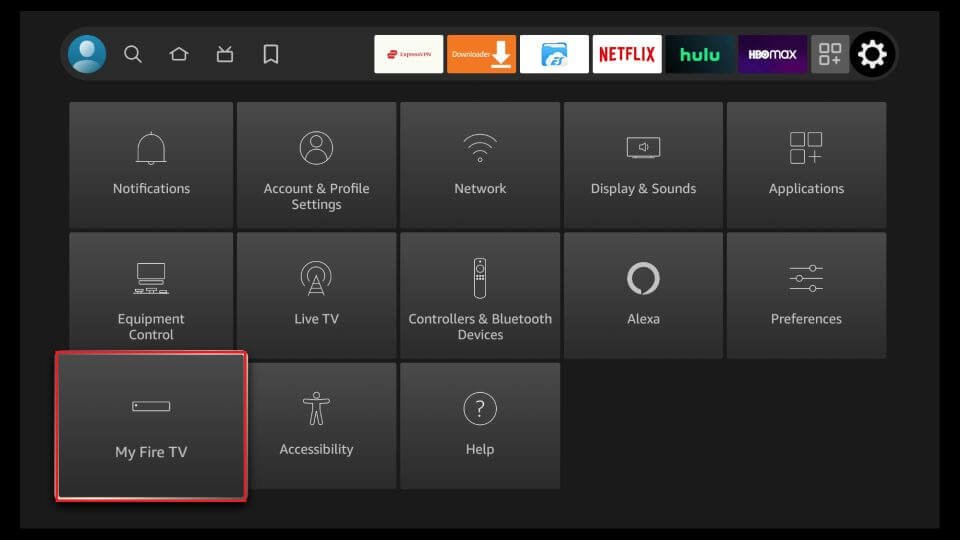
Step 5: In Settings, go to My Fire TV and open it.
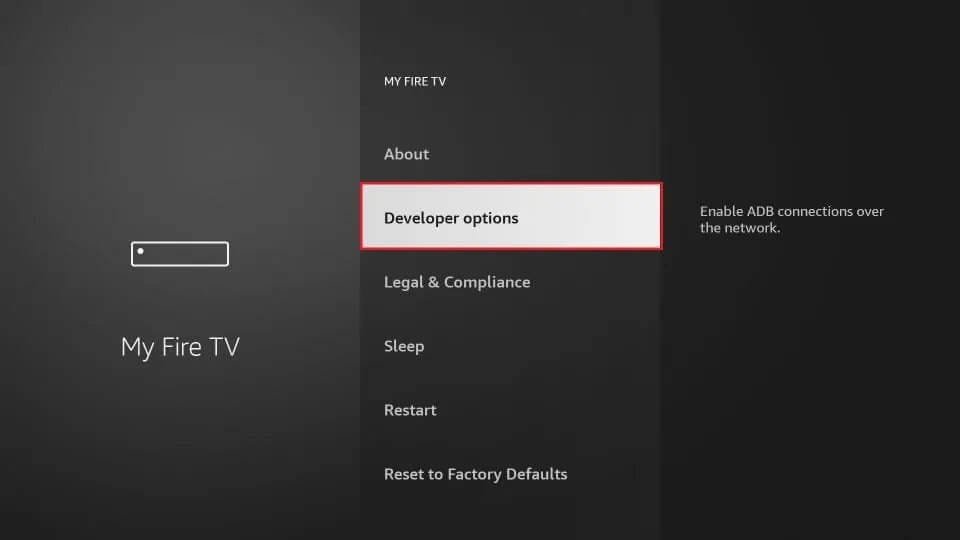
Step 6: Next, open Developer Options from the menu.
If Developer Options are not visible, go to Settings > My Fire TV > About.
Select your Fire TV Stick and click on it 7 times to unlock Developer Options
Step 7: Click on Install Unknown Apps in the next window.
Note: If you’re using an older FireStick interface, select Apps from Unknown Sources instead
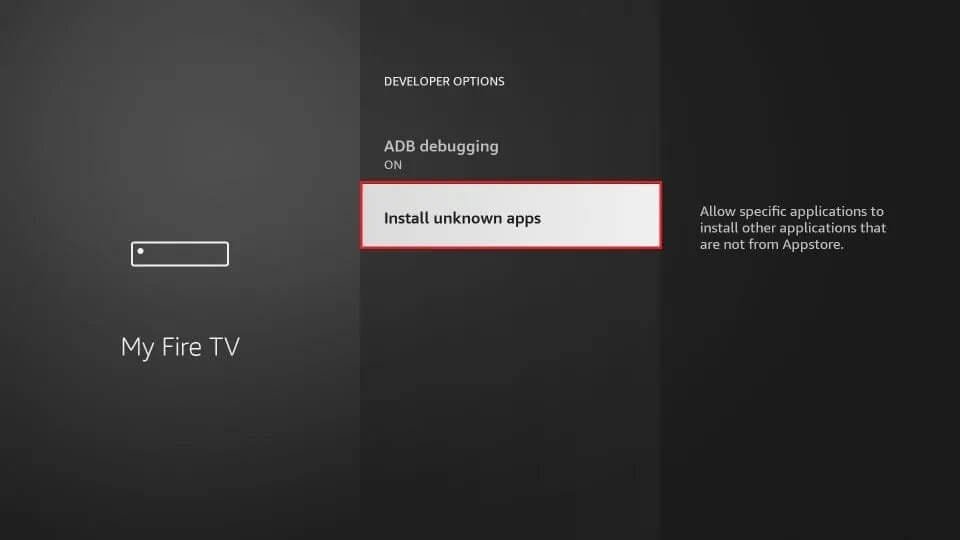
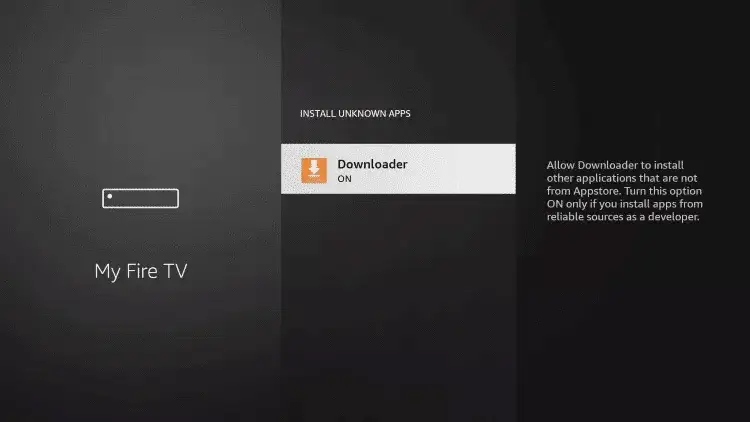
Step 8: Turn ON the option for the Downloader app to allow installation from unknown sources.
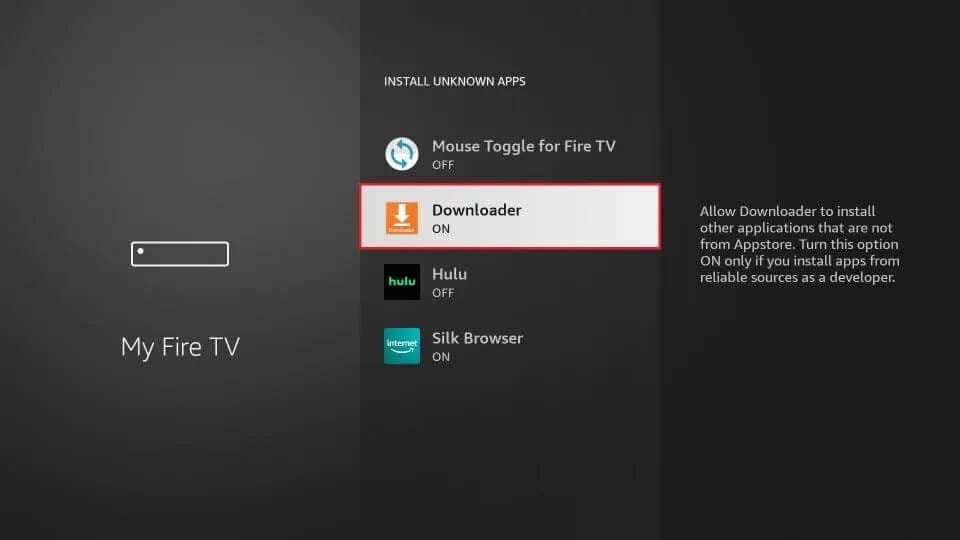
With unknown sources enabled, you can start installing IBO Player on your FireStick.
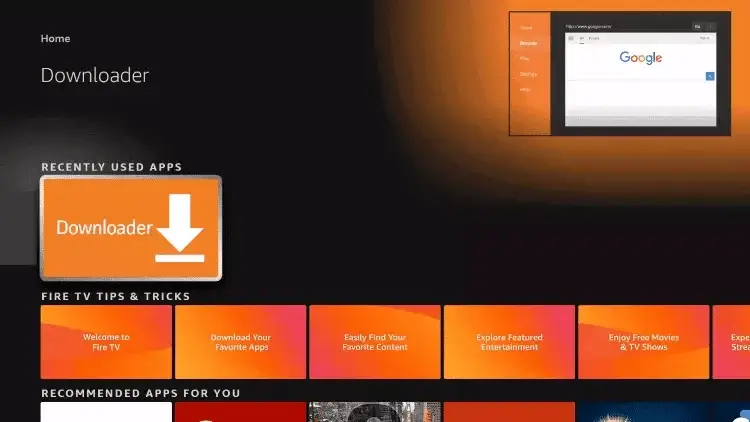
Open the Downloader app. On the first launch, you may see some prompts — close them by selecting the appropriate options. When the main screen appears, click on the text field highlighted in the image below.
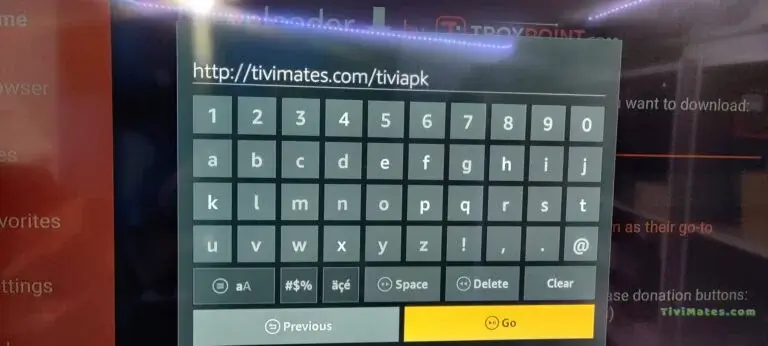
Step 9: Using the on-screen keyboard, enter the following URL into the popup window:
https://shorturl.at/hsMW1 (Downloader Code: 834339)
Then, click OK to continue.
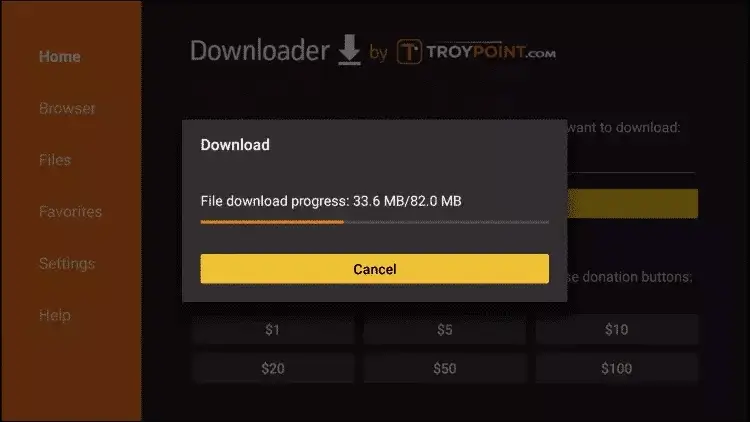
Step 10 : Wait for the IBO Player APK to download onto your FireStick.
The Downloader app will automatically launch the APK for installation. Proceed with the installation as prompted.
Using the IBO Player App:
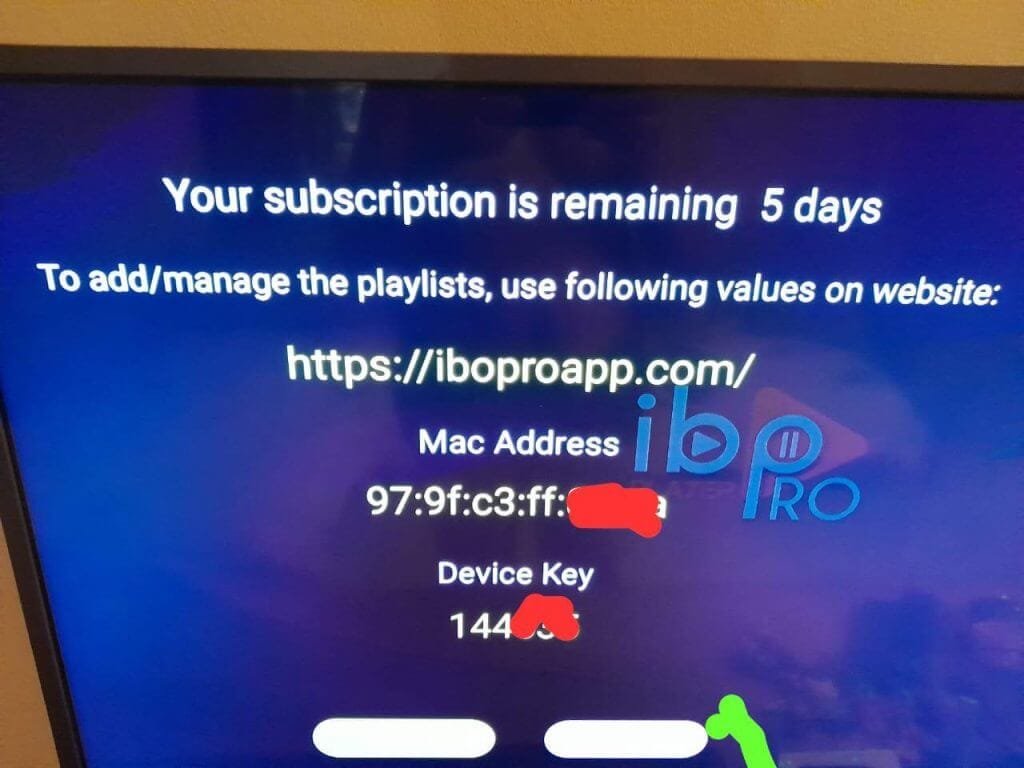
1- A screen showing your MAC address and device key will appear. Click Next to continue.
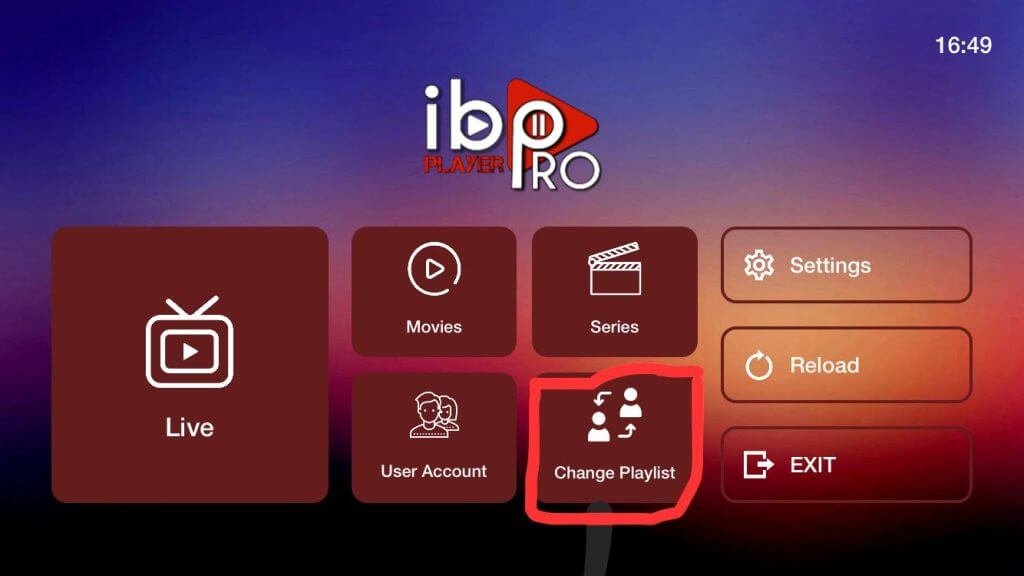
2: The app’s home screen will appear. Click Change Playlist to continue.
3: Click Add Playlist to add your IPTV playlist.
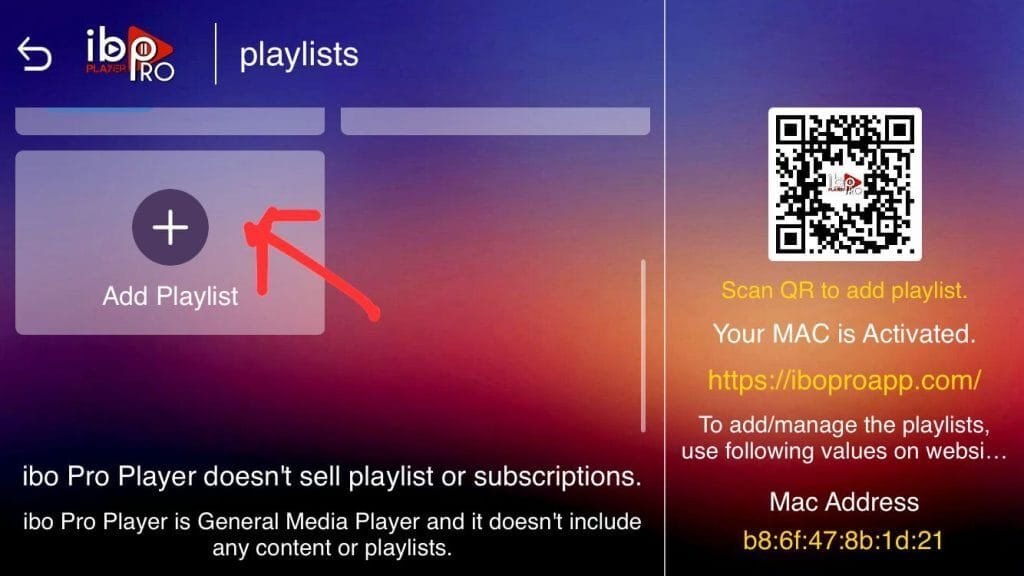
Note: You can add your playlist using either of the two methods described below.
Method 1: Add your M3U link and check your email inbox (or spam folder) for your subscription account login details.
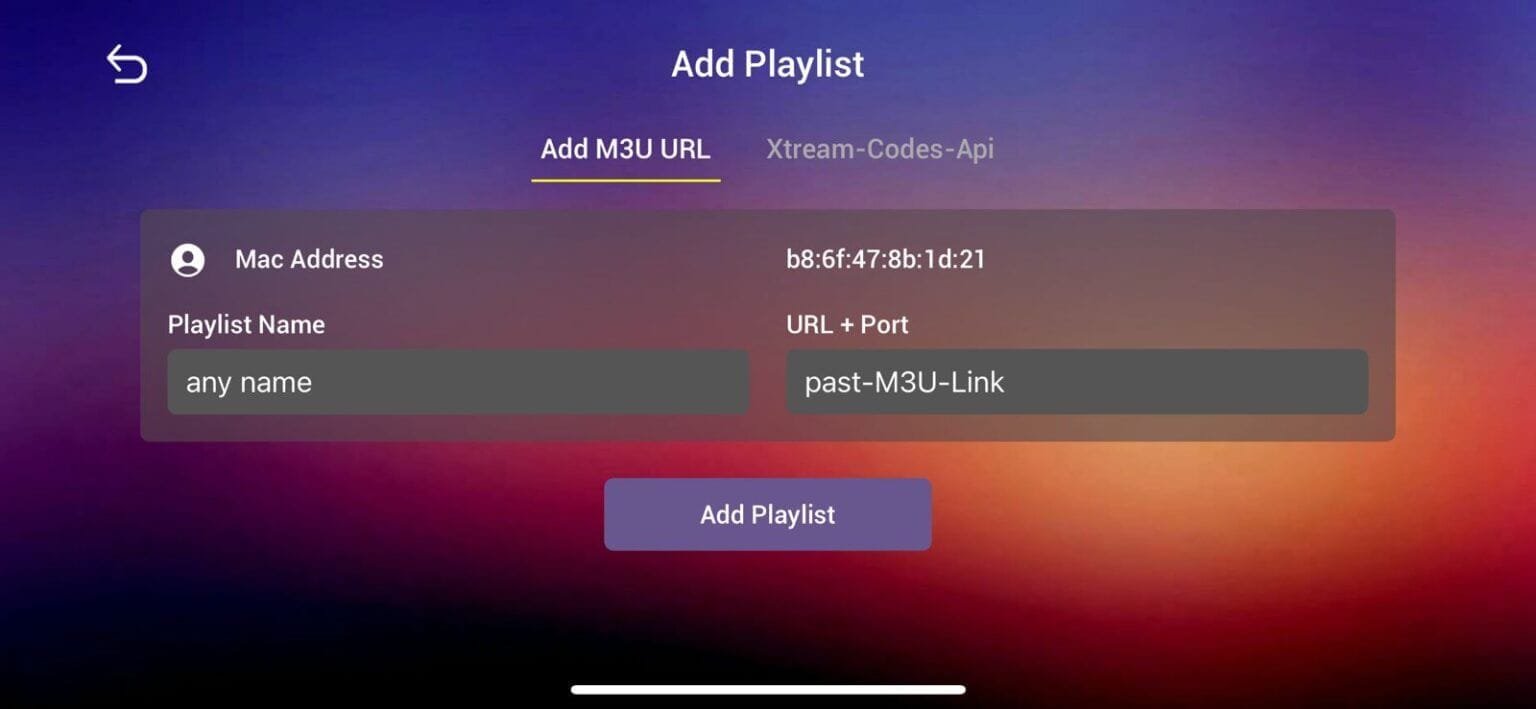
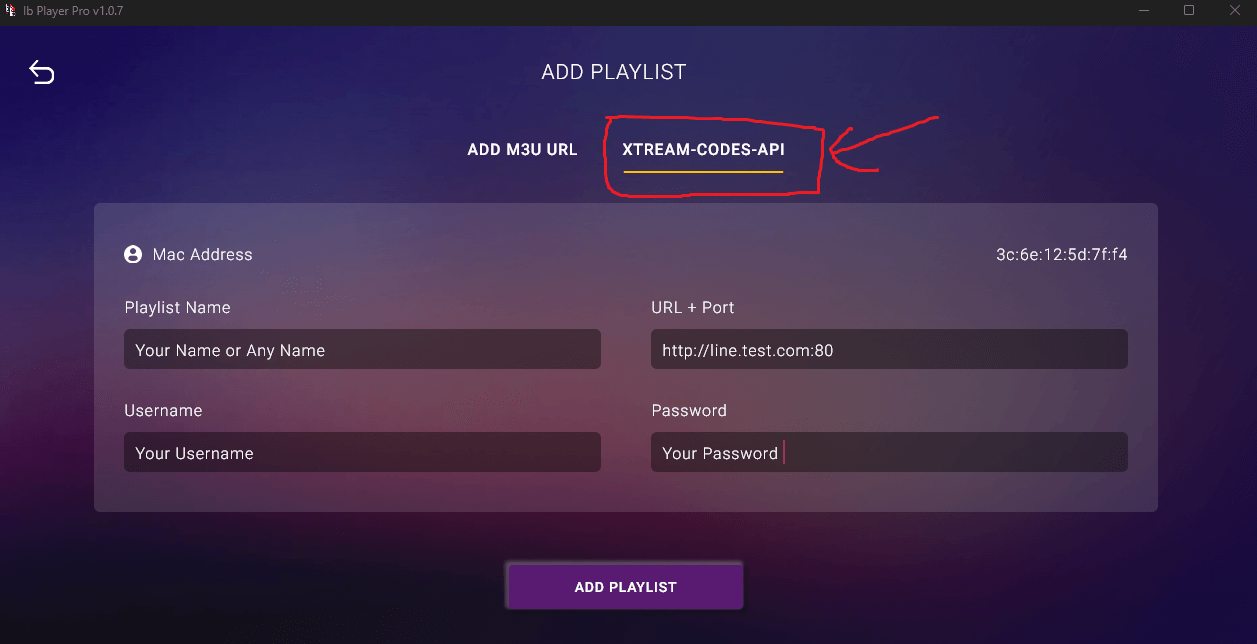
Method 2: Select the Xtream-Codes API tab and check your email inbox (or spam folder) for your subscription account login details.
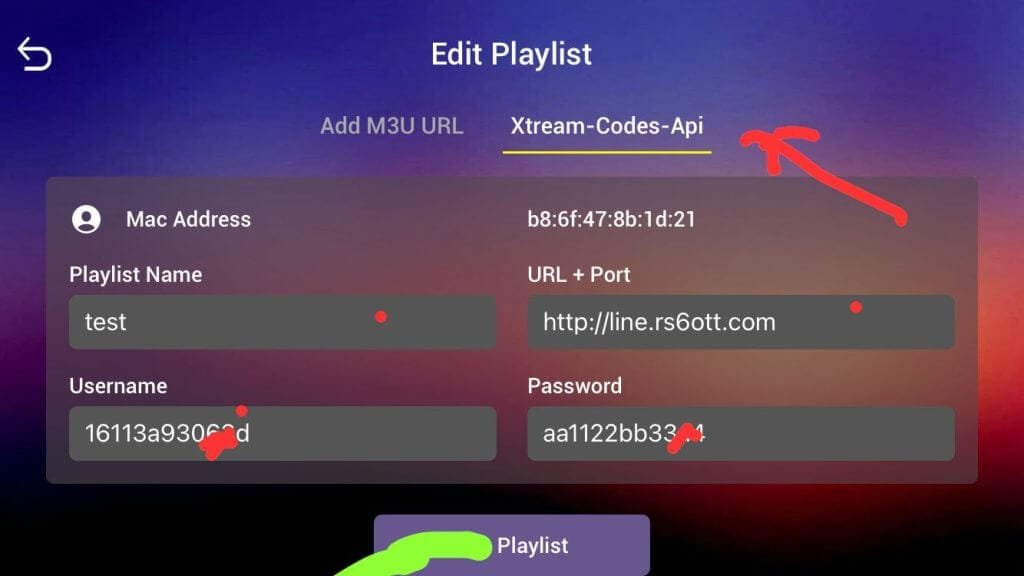
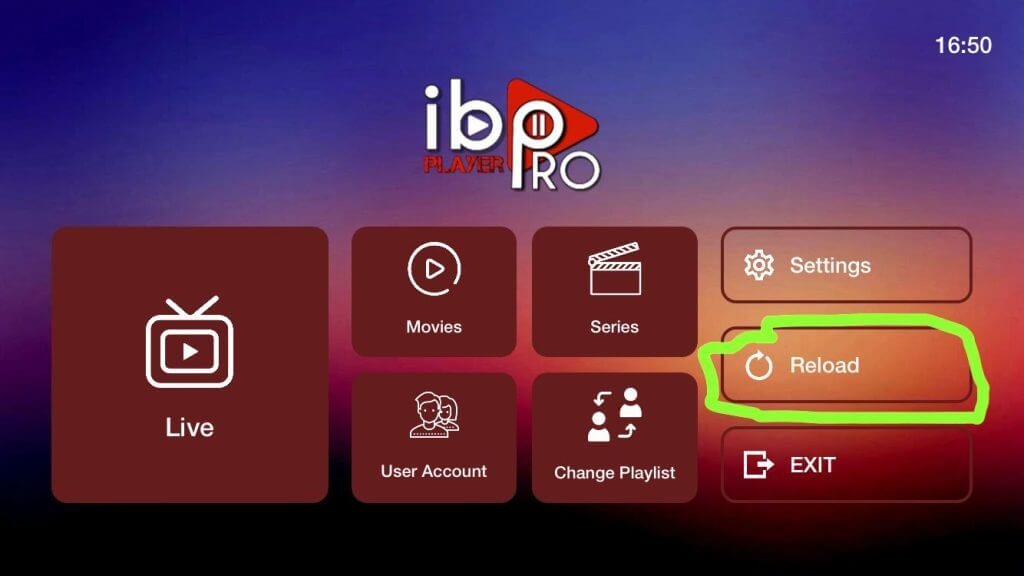
4: Select Add Playlist. Make sure the playlist is linked to the home screen, then click Reload to refresh the content.
For All Android Devices: Phones, TVs, and boxes with 4K IPTV.
Simply go to the Google Play Store and search for IBO Pro Player.
For All iOS Devices: iPhones, Macs, and Apple TVs with 4K IPTV.
Simply go to the App Store and search for IBO Pro Player to download.
For LG TVs:
Go to LG Apps and search for IBO Pro Player.
For Samsung TVs:
Go to Samsung Apps and search for IBO Player Pro (4K IPTV).
Step 1: Send us your MAG device MAC address via WhatsApp, email, or live chat.
Step 2: After payment, we will send you the portal link to access your IPTV subscription.
Install 4K IPTV with IBO Player Pro
Step 4: Launch the IBO Player Pro app.
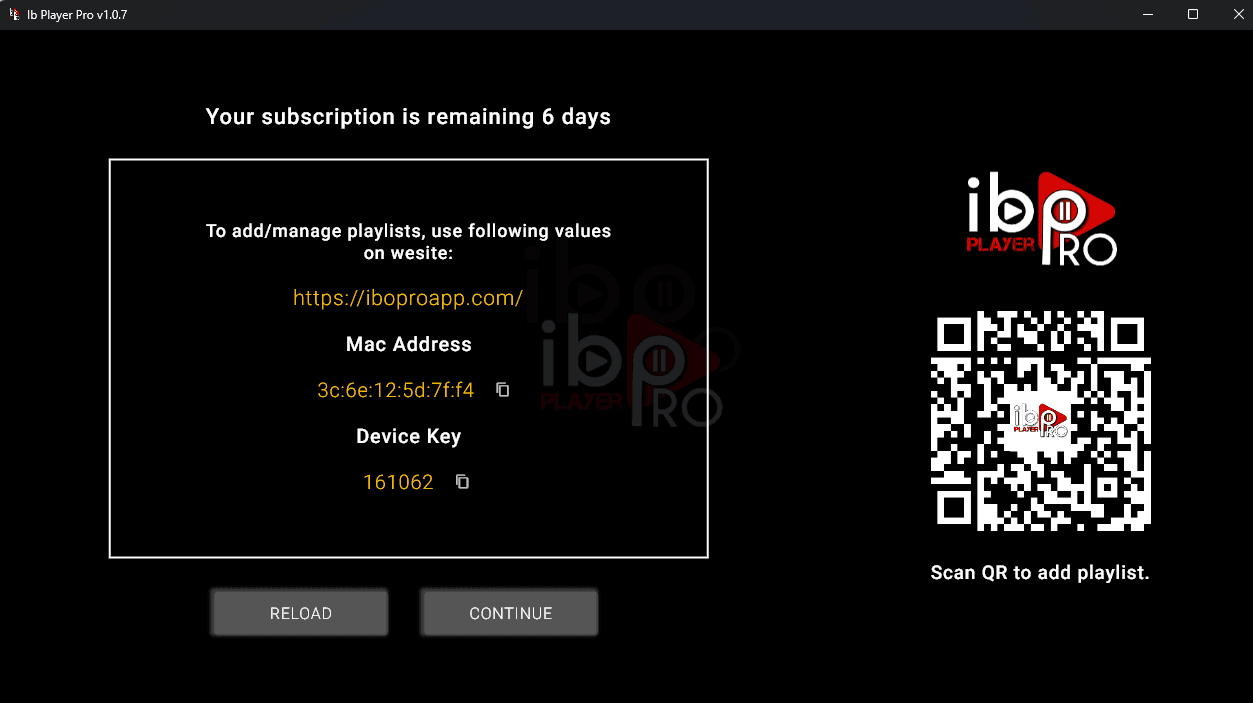
Step 5: After sending your MAC address and device key to us, reload the app to view the newly added playlist.
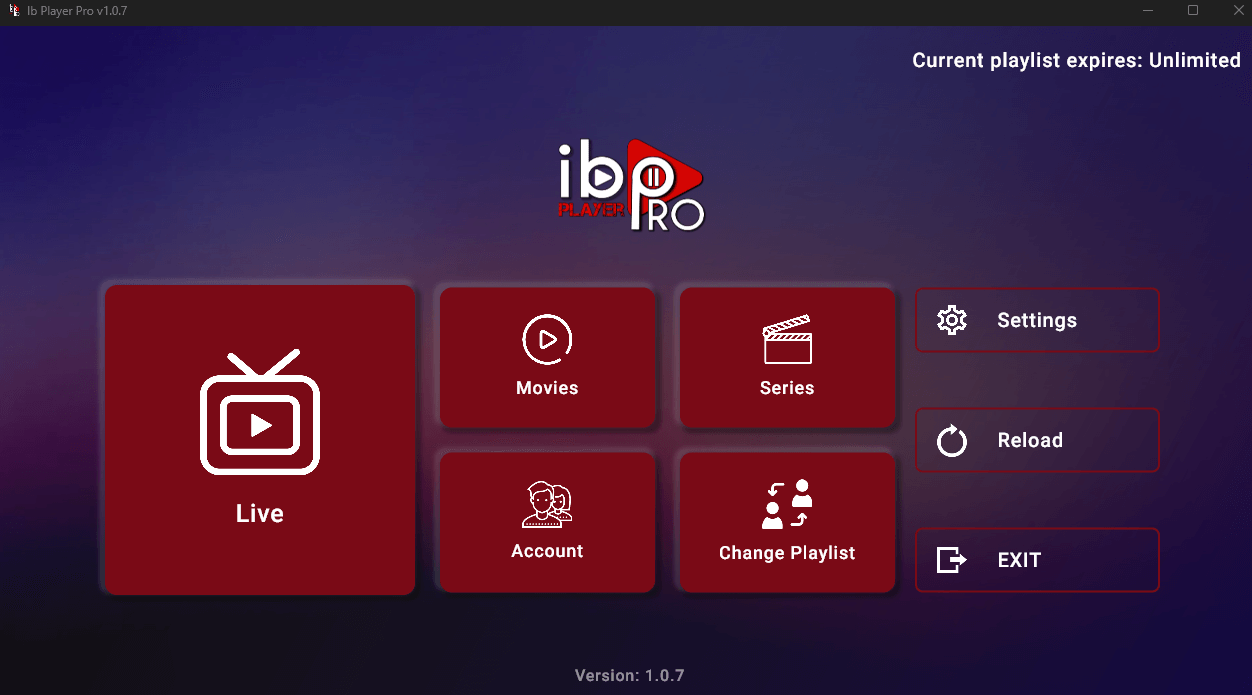
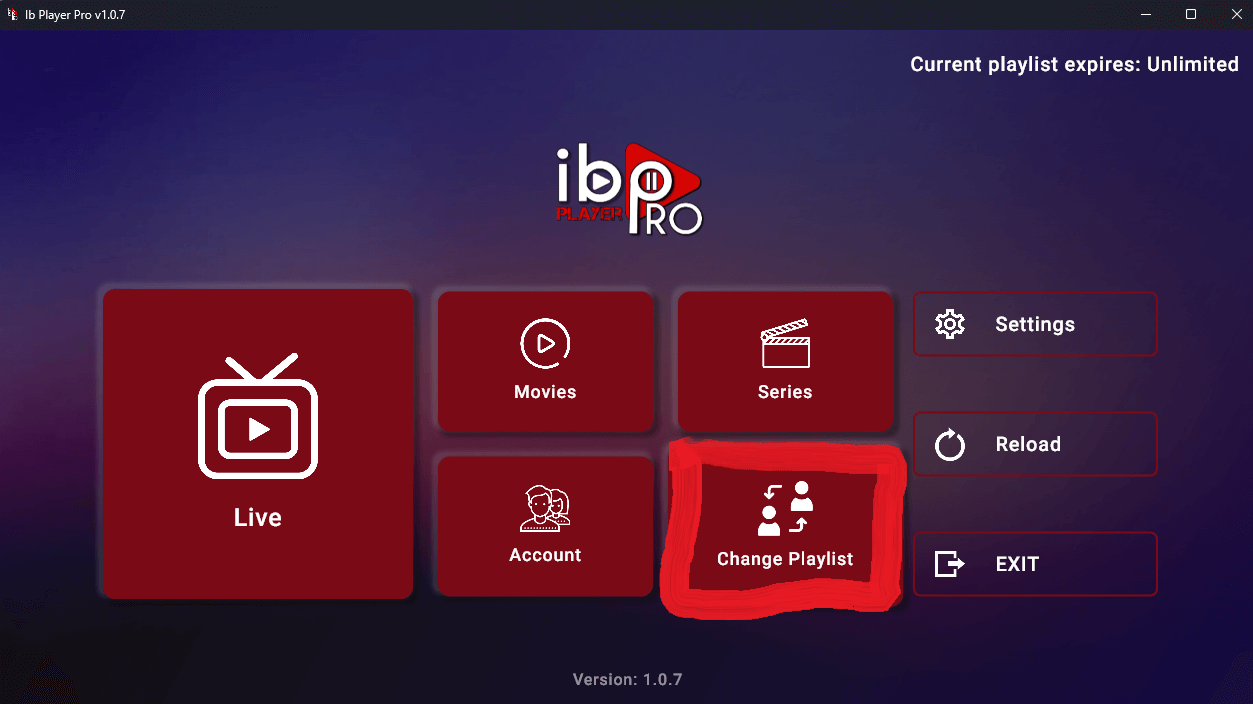
Step 6: To change your playlist, go to the app’s home screen and select Change Playlist.
7. Klicken Sie auf Playlist hinzufügen
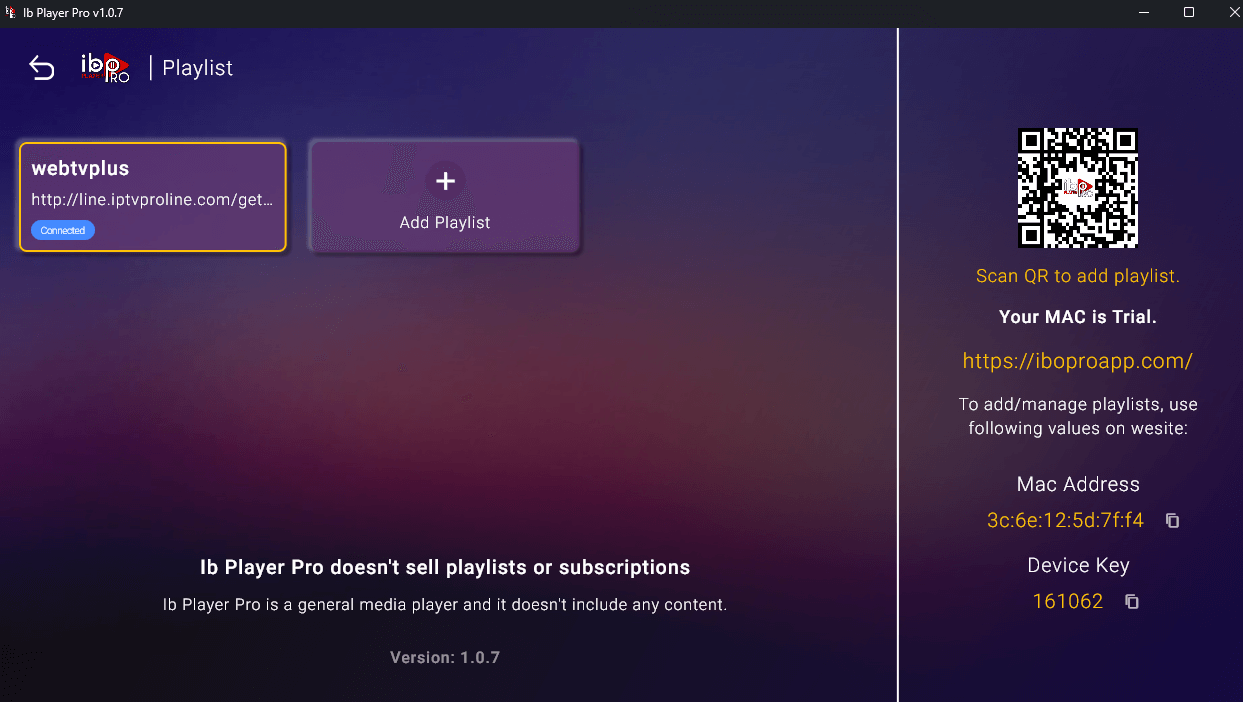
Note: You can add your playlist using one of the two methods described below.
Method 1: Add your M3U link and check your email inbox (or spam folder) for your subscription account login details.
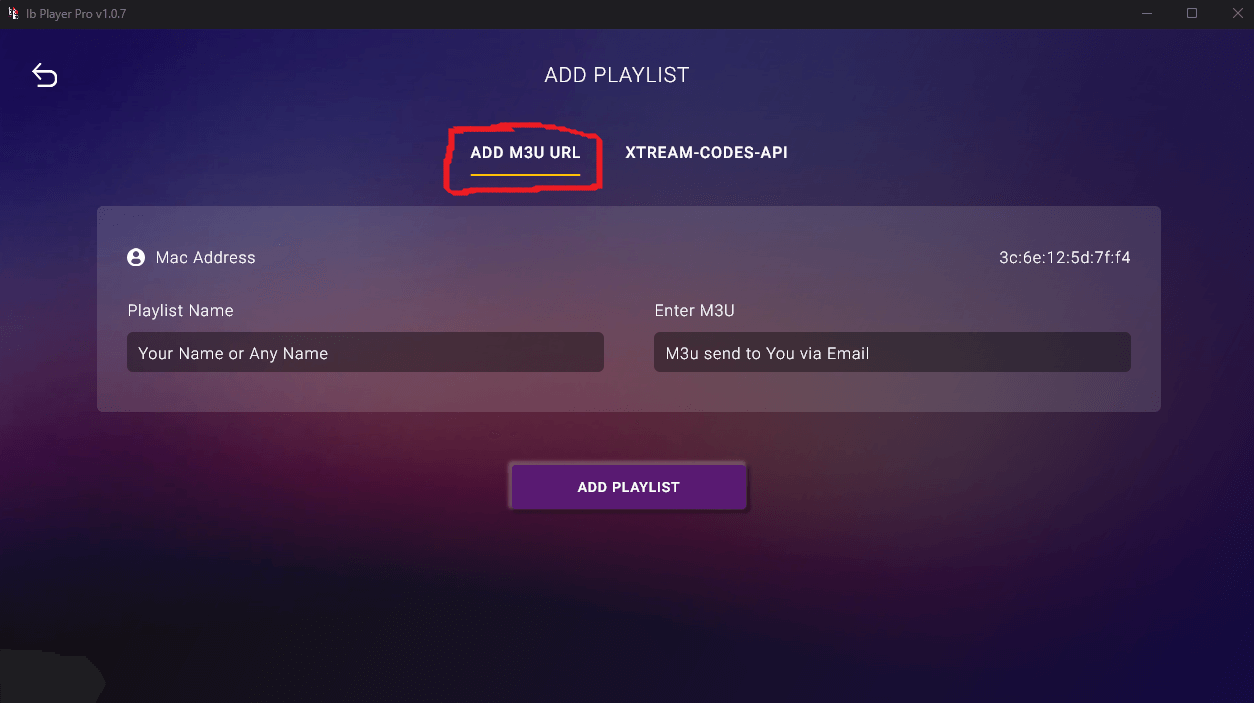
Method 2: Select the Xtream-Codes API tab.
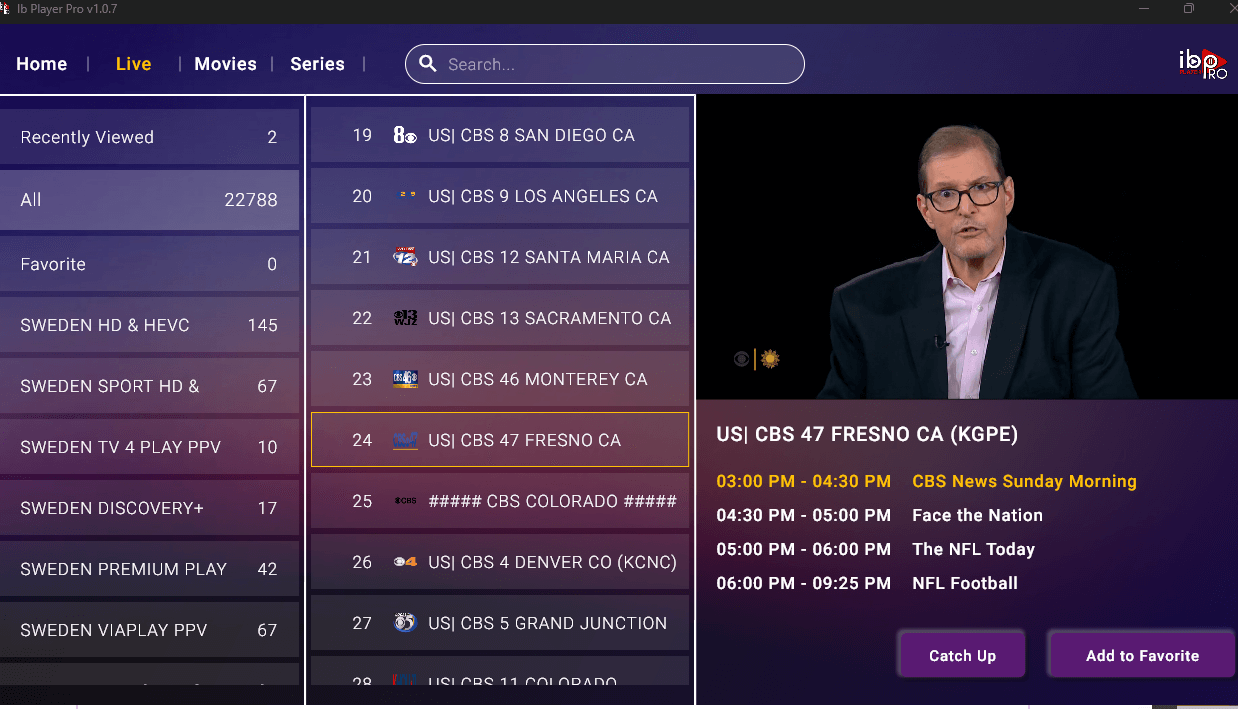
Step 8: Enjoy your live TV channels, movies, and series.
Step 1: On your device’s home screen, hover your cursor over the Search option.
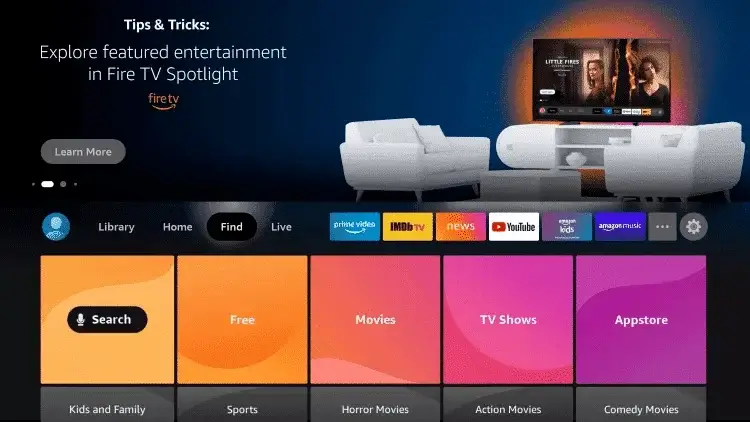
Step 2: Click on Search.
Step 3: Search for and select the Downloader app.
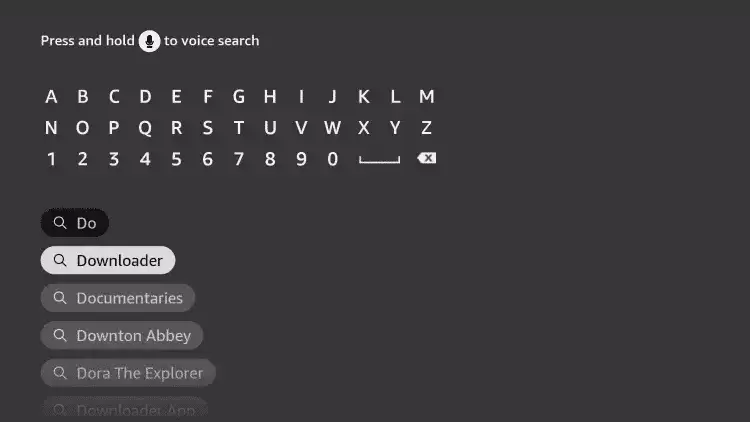
Step 4: Select the Downloader app from the search results.
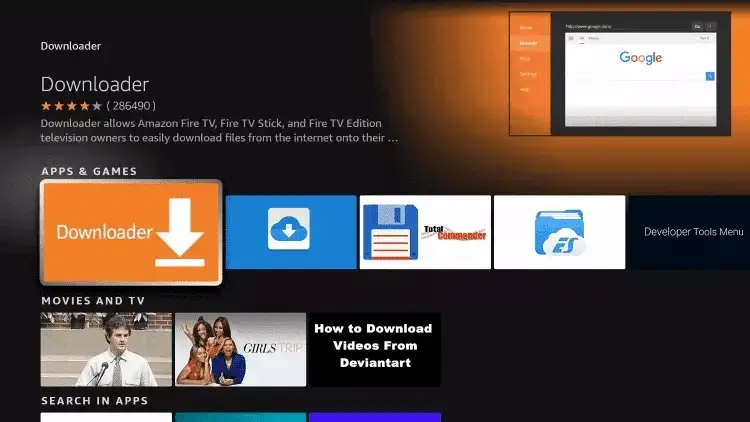
Step 5: Click Download to install the app.
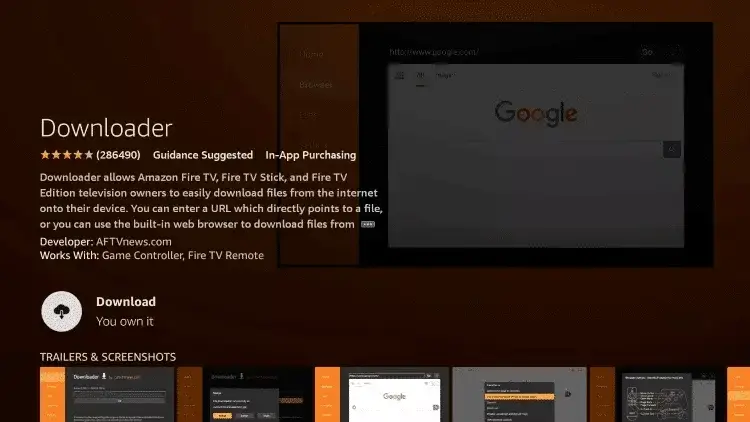
Step 6: Once the installation is complete, click Open to launch the app.
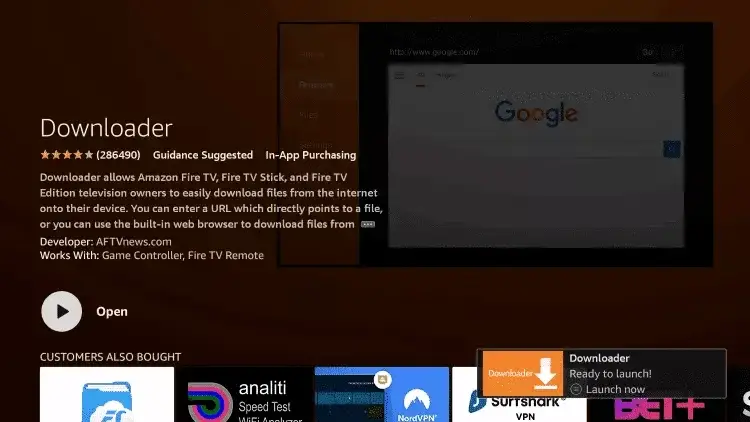
Step 7: Return to the home screen and open Settings.
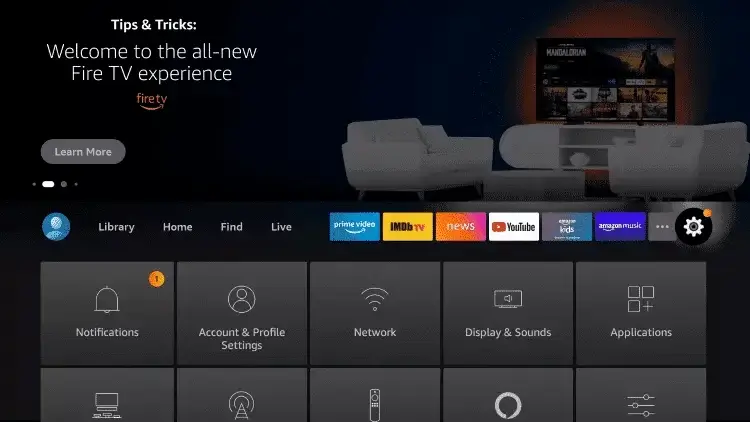
Step 8: Click on My Fire TV.
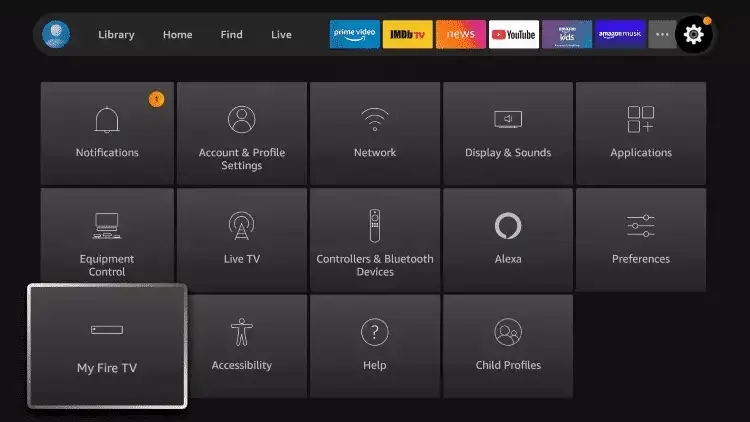
Step 9: Select Developer Options.
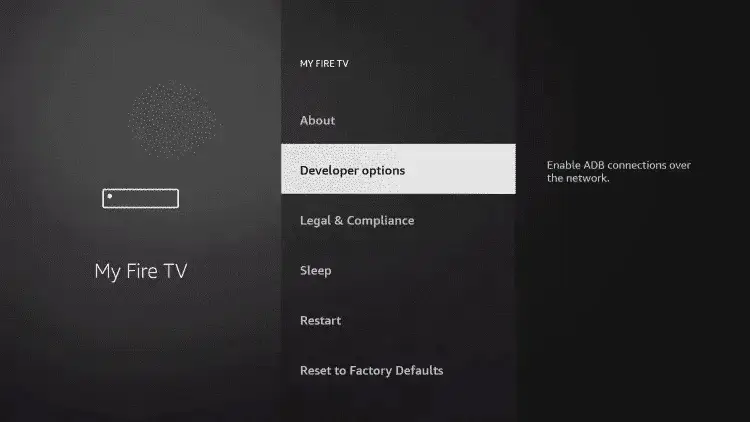
Step 10: Click on Install Unknown Apps.
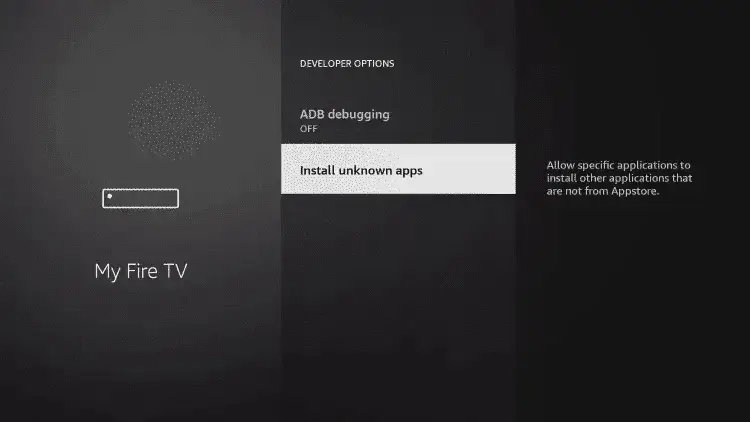
Step 11: Find the Downloader app and click on it.
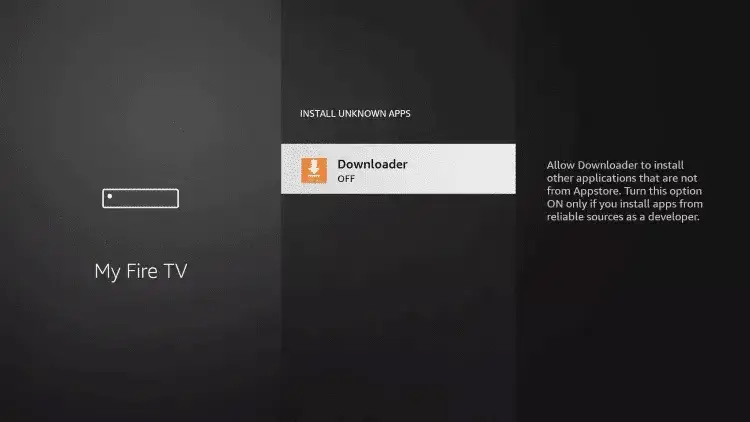
Step 12: This will enable Unknown Sources for the Downloader app, allowing sideloading on your device.
Step 13: Launch the Downloader app.
Step 14: Click Allow to grant Downloader the necessary permissions.
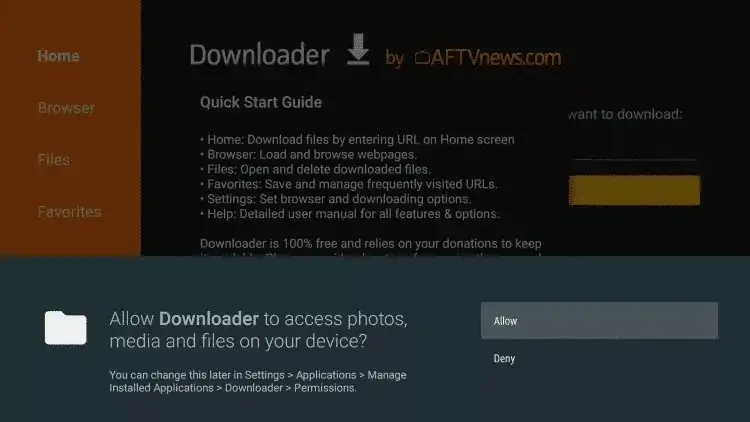
Step 15: Click OK to close the pop-up message.
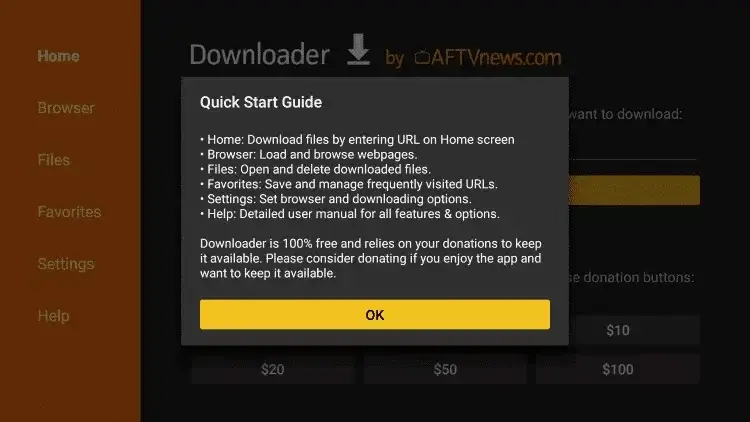
Step 16: Enter the following URL exactly as shown:
Then click Go.
Step 17: Wait until the file has finished downloading.